Marvelous. Just love it. Read More..
Showing posts with label video. Show all posts
Friday, June 10, 2011
Video Dictionary 2.0
I've just been having a look at Wordia which is a wonderful new dictionary site. The entries are all video clips submitted by ... well anyone!
It's a bit like a YouTube video dictionary. I've just been having a quick browse and I love it. Great site for native and non native speakers of English. Also great collection of different accents. Even a few 'celebrities' thrown in!
Marvelous. Just love it. Read More..
Monday, February 28, 2011
Create a Web Based Song Activity in Minutes
Back in December 2010 I wrote an article about how you could use Batlyrics, a site which combined Song videos and lyrics, as a corpus to find examples of grammar or vocabulary you wanted your students to focus on: 'Lyrics and Video and Grammar - Song as Corpus'
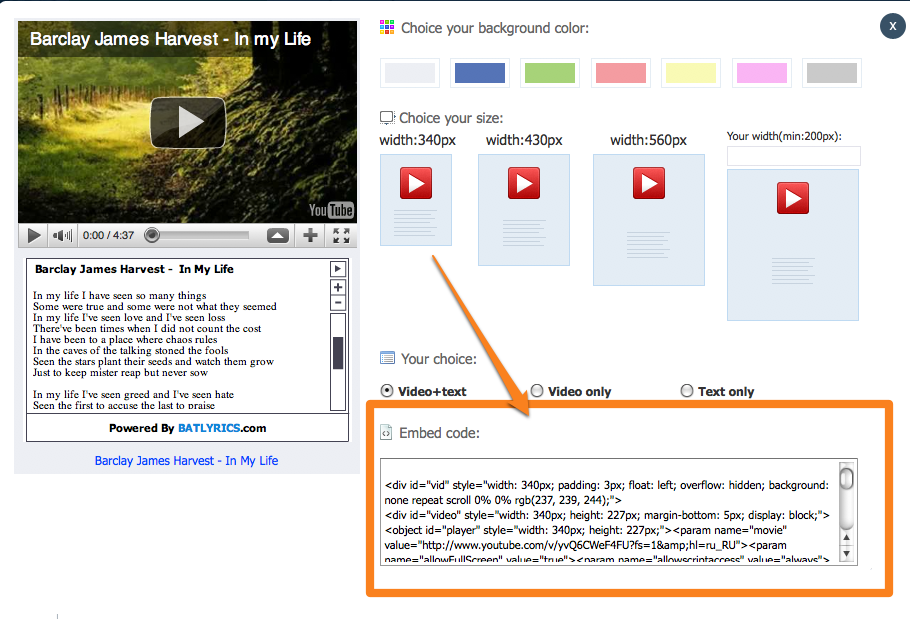
Since writing this article I've spotted another useful feature of the site, and that is the addition of an embed code button.

This is really helpful, because now it means that you can select the song you want to use, copy the embed code and then embed it into your own web page or blog and write your activity around it.
This is particularly easy if you use the Posterous blogging platform, as all you need to do is copy and paste the embed code into and email, add a title and instructions and post it off to post@posterous.com.

A few seconds later you should get a message back with a link to your published activity. Then you just share the link with your students.
Related links:
Nik Peachey Read More..
Since writing this article I've spotted another useful feature of the site, and that is the addition of an embed code button.
This is really helpful, because now it means that you can select the song you want to use, copy the embed code and then embed it into your own web page or blog and write your activity around it.
This is particularly easy if you use the Posterous blogging platform, as all you need to do is copy and paste the embed code into and email, add a title and instructions and post it off to post@posterous.com.
A few seconds later you should get a message back with a link to your published activity. Then you just share the link with your students.
- Here's a quick example that I created: In my life
Related links:
- 5 Tasks to Teach Yourself to Teach with Technology
- 3 More Tasks to Teach Yourself to Teach with Technology
- Animated Music Videos for EFL
- Using Word Clouds in EFL
- 6 Activities you can do online with songs and music
- Can Music Aid Memory of Text?
- Karaoke with a Social
Nik Peachey Read More..
Labels:
grammar,
interactive,
listening skills,
lyrics,
song,
video,
vocabulary
Saturday, December 18, 2010
Creating Video Sentences
Twist Our Words is a great site I spotted while watching TV in the UK. It enables you to create video sentences that are 'mashed up' from a collection of clips of UK TV celebrities saying each word. If you don't understand that then look at this example I created. Click the white arrow to play it.
Making a video like this is very simple, just go to: http://twist.channel4.com/words and you'll see a page full of words. Click on the words you want to put in your sentence.
Then click on the words will appear along the bottom. When your sentence is complete, click on the white arrow at the and to watch it.

If you like the video, then just click on submit and you'll be able to get a URL link for the video or and embed code to add it to your site or blog.

If you don't want to create your own sentence you can just click on 'Lucky Dip' and you'll get an automatically generated sentence.

I think Twist Our Words is a great tool to use with students to get them creating and listening to language.
Related links:
Best
Nik Peachey Read More..
Making a video like this is very simple, just go to: http://twist.channel4.com/words and you'll see a page full of words. Click on the words you want to put in your sentence.
Then click on the words will appear along the bottom. When your sentence is complete, click on the white arrow at the and to watch it.
If you like the video, then just click on submit and you'll be able to get a URL link for the video or and embed code to add it to your site or blog.

If you don't want to create your own sentence you can just click on 'Lucky Dip' and you'll get an automatically generated sentence.

I think Twist Our Words is a great tool to use with students to get them creating and listening to language.
- They could try to make poems or haiku
- They can produce a lucky dip sentence and then see how many word they can add to it without it loosing sense.
- You could produce sentences that have errors in and get the students to try to spot the errors and correct them.
- You can produce a collection of sentences and get students to decide which are correct and which are not.
- You could have a competition to see which students can produce the longest grammatically correct sentence.
- They could collect together all the words they can find that include a particular phoneme or all the word which rhyme.
- They could try to make a video with all the words that contain 3 syllables and the same stress pattern.
Related links:
- Flickr in 3D
- Create Spelling Games and Tests
- Get Students Checking Grammar and Collocation
- A Collaborative English Grammar
- Using Word Clouds in EFL ESL
- Revising Short Texts and Syntax on IWB
Best
Nik Peachey Read More..
Friday, December 3, 2010
Lyrics and Video and Grammar - Song as Corpus
A while ago I wrote a posting (Teaching Grammar Through Songs) on how you could search song lyrics for particular words or phrases, then find the lyrics and video to go with the song. In the posting, this involved using two different sites, but now I have found one site that does the whole thing.

The site is called Batlyrics. It's very simple to use. You just go to the search part of the site and click the 'Lyrics Words' search.
Then type in the phrase, structure or words you want to find in the text and you'll see the possible phrases from the lyrics start to appear.
Once you select one, you will be linked through to a page of possible versions of the song. Select the one you want and the video of the song should appear with the lyrics underneath.
This is a really fast way to find motivating listening materials for your students that deal with specific structures or vocabulary.
Using this with EFL students
I hope you find Batlyrics useful. Here you can find more EFL / ESL activities that use songs.
Related links:
Nik Peachey Read More..

The site is called Batlyrics. It's very simple to use. You just go to the search part of the site and click the 'Lyrics Words' search.
Then type in the phrase, structure or words you want to find in the text and you'll see the possible phrases from the lyrics start to appear.
Once you select one, you will be linked through to a page of possible versions of the song. Select the one you want and the video of the song should appear with the lyrics underneath.
This is a really fast way to find motivating listening materials for your students that deal with specific structures or vocabulary.Using this with EFL students
- You can get students to search for their own examples and learn the words.
- You can use it as a way to find listening materials and copy the lyrics to make into classroom activities such as gap fill or reorganising the text.
- You could cut and past the lyrics into this cloze test creator and you then have an interactive listening activity. Better still students could find there own songs and copy the lyrics into the cloze test creator so that they create their own personalised activities.
I hope you find Batlyrics useful. Here you can find more EFL / ESL activities that use songs.
Related links:
- Animated Music Videos for EFL
- Using Word Clouds in EFL
- 6 Activities you can do online with songs and music
- Can Music Aid Memory of Text?
- Karaoke with a Social
Nik Peachey Read More..
Monday, June 7, 2010
CP Cheats Club Penguin Money Maker Download
Want to make money fast in the Club Penguin game? You can try CP Cheats Club Penguin Money Maker, which can help you make upto 10,000 coins each time in just a few simple clicks.
How to use CP Cheats Club Penguin Money Maker:
1. Go to http://www.cpcheats.info/money-maker/, download the latest version of Club Penguin Money Maker (now is Mone Maker 2). This is the download link: http:// Read More..
How to use CP Cheats Club Penguin Money Maker:
1. Go to http://www.cpcheats.info/money-maker/, download the latest version of Club Penguin Money Maker (now is Mone Maker 2). This is the download link: http:// Read More..
Thursday, May 20, 2010
Ask & Answer Video Questions
Much as I don't like appearing on video I do like web based video tools and Plank.ly is one that caught my eye recently. Plank.ly is an asynchronous Q&A site which allows users to ask and answer each other's questions either by text or video.
It's very easy to use, you just need a webcam and to set up your account. Once you have done that you can integrate it with Twitter or Facebook (though I would advise that you wait to see how useful it is first) and you can start inviting friends or students to follow you and invite them to leave questions for you. It's a good idea to get started by getting Plank.ly to ask you a few random questions, so that when visitors come there is something for them to see. This is very simple to do. Once you have created your account, go to the 'Inbox' and click on 'Ask yourself a random question'.
Once the questions appears, you can answer it either using text or video, just by clicking the icon on the right.
Clicking the video icon will launch the video recorder window. You'll need to click on 'Allow' so that the Flash plug in can access your camera and microphone.
Then you just click on 'Record' and start recording your answer to the question. You can try again if you don't get it right first time so don't worry too much. If you like your recording, just click on 'Use' .
All of your video answers are collected in your 'Activity stream'so you can go back and edit or delete them later.
The next thing to do is either start inviting friends through Twitter or Facebook, or if you prefer just send the URL of your stream to people who you want to ask you questions. The they can either submit a questions by text or record a video questions for you. You can see my stream and try it at: http://plank.ly/NikPeachey
The activity stream is a little like Twitter in that you can start to follow people or they can follow you, so you can start asking and answering each other's questions and see what questions other people have been asked.
How to use this with students
Potential problems
Related links:
Nik Peachey Read More..
Once the questions appears, you can answer it either using text or video, just by clicking the icon on the right.
Clicking the video icon will launch the video recorder window. You'll need to click on 'Allow' so that the Flash plug in can access your camera and microphone.
Then you just click on 'Record' and start recording your answer to the question. You can try again if you don't get it right first time so don't worry too much. If you like your recording, just click on 'Use' .
All of your video answers are collected in your 'Activity stream'so you can go back and edit or delete them later.
The next thing to do is either start inviting friends through Twitter or Facebook, or if you prefer just send the URL of your stream to people who you want to ask you questions. The they can either submit a questions by text or record a video questions for you. You can see my stream and try it at: http://plank.ly/NikPeachey
The activity stream is a little like Twitter in that you can start to follow people or they can follow you, so you can start asking and answering each other's questions and see what questions other people have been asked.How to use this with students
- I think this is a great 'ice-breaker' especially for an online class where students don't really get to meet each other and are often working in different time zones.
- It's also a great way for lower levels to get some online speaking practice for homework and the fact that they record their answers will be interesting when they come to look back on their progress. Also great for you to help assess their progress too.
- It's also a nice way for new classes to get to know you as their teacher. This can be really difficult in bigger classes with lots of students, so this can add a nice element of 1 - 1 contact.
- Questions and answers are the fundamental building blocks of language, so this is a great tool for checking out students' grammar and their ability to formulate questions and answers in any particular tense, so great online controlled speaking practice too.
Potential problems
- This is an open site, so students can be 'found' by other people, so think about what age groups you use the site with. If you are following the students, however, you will be able to see who they are interacting with and as all accounts are registered you will be able to track back any bullying or abuse that may happen.
Related links:
- Create Quick Video Task Sheets
- Cropping YouTube Videos to Create Activities
- Quick Twitter Video Activity
- 20 WebCam Activities for EFL ESL Students
- Sending Bubble Joy to your EFL / ESL Students
- Animated Music Videos for EFL
- Creating multimedia stories
- 12 Second Video Clips for EFL ESL
- Tutorial: Using Videos from YouTube
- Great Video Commenting Tool
Nik Peachey Read More..
Tuesday, April 27, 2010
Create Quick Video Task Sheets
Vidinotes is an interesting site that I spotted a few weeks back. It's a great way to produce instant (almost) video worksheets to go with YouTube videos.
Basically, what it does is to convert an flv video file into a number of screen shots with a space next to each screen shot for the students to take notes.
I picked this silent video with sound track by Micheal Galasso as it has a very visually rich digital narrative and made a worksheet for it.
To do this I first had to download the video as an flv file. I did this using the KeepVid site recommended by Vidinotes. Then you have to upload the flv clip to the Vidinotes site. This was pretty slow, but it will depend a lot on the length of your clip and you can do other things while you wait for it to upload.

Once the clip is uploaded start to play it and simply click the 'Capture' button when you see a frame you want in your worksheet.
As you capture images they will appear on the right of the video. And you can either give each image a title or leave it blank. You have to give the worksheet a name though.
Once you have captured all the images you want from the video (you can select up to 30) you simply click on 'Print' and you have your worksheet.
You can use these worksheets for a range of activities and with a range of different video types.
This is a great way to create simple and versatile video worksheets that won't take you too long. I hope you find it useful and create some great tasks and activities for your students.
You can find 25 more video related activities for EFL and ESL students here.
Related links:
Nik Peachey Read More..
Basically, what it does is to convert an flv video file into a number of screen shots with a space next to each screen shot for the students to take notes.
I picked this silent video with sound track by Micheal Galasso as it has a very visually rich digital narrative and made a worksheet for it.
To do this I first had to download the video as an flv file. I did this using the KeepVid site recommended by Vidinotes. Then you have to upload the flv clip to the Vidinotes site. This was pretty slow, but it will depend a lot on the length of your clip and you can do other things while you wait for it to upload.

Once the clip is uploaded start to play it and simply click the 'Capture' button when you see a frame you want in your worksheet.
As you capture images they will appear on the right of the video. And you can either give each image a title or leave it blank. You have to give the worksheet a name though.
Once you have captured all the images you want from the video (you can select up to 30) you simply click on 'Print' and you have your worksheet.
You can use these worksheets for a range of activities and with a range of different video types.- You could use them as prediction tasks before students watch the clip. Students could predict the story or what the characters will say.
- Students could try to write in what the characters are thinking at each stage of the clip.
- Students could use the worksheet to make notes of lectures or how to videos.
- Students could use them to summarise steps in a process being described.
- Students could describe the images from the video and build their own narrative or sets of instructions.
You can find 25 more video related activities for EFL and ESL students here.
Related links:
- Cropping YouTube Videos to Create Activities
- Quick Twitter Video Activity
- 20 WebCam Activities for EFL ESL Students
- Great Video Commenting Tool
- Video conferencing for EFL
- Send Free Video Messages
- Animated Music Videos for EFL
- Creating multimedia stories
- 12 Second Video Clips for EFL ESL
- Tutorial: Using Videos from YouTube
Nik Peachey Read More..
Monday, March 15, 2010
www.Bet.com/riptherunway - BET's Rip The Runway 2010
Rip The Runway is back and searching for the best talent. Want to be a model this year? Go to www.Bet.com/riptherunway and apply now!
You see all sorts of Internet Models that have made it big and you want to know how you can do the same? You want to stop living the mundane and uneventful life you've been living. You're tired of being on the outside looking at those on the inside. You want to Read More..
Wednesday, January 13, 2010
Quick Twitter Video Activity
Educators seem to be constantly searching for new activities and ways to use Twitter with their Students. At the same time developers seem to be constantly looking for ways to build on the success of Twitter and develop apps and sites that will extend its functionality and increase its usefulness and usability.

Chitter.TV is one of those sites. It allows you to visit various live TV channels from a range of sources, see what people are saying about them on Twitter and add your own comments.
To add your comments you'll need to be logged in to your Twitter account, but once you are it's just a simple case of watching what is happening on the channels you are interested in and then writing your comment underneath and posting it directly to Twitter.

Chitter.TV has quite a range of channels to choose from and they are not all English language ones. They vary from news channels to MTV and light entertainment channels all the way through to kids channels.

Here's how you could use Chitter.TV with your students
I hope you enjoy this and do post a comment if you think of other ways to use Chitter.TV with your students.
Nik Peachey Read More..

Chitter.TV is one of those sites. It allows you to visit various live TV channels from a range of sources, see what people are saying about them on Twitter and add your own comments.
To add your comments you'll need to be logged in to your Twitter account, but once you are it's just a simple case of watching what is happening on the channels you are interested in and then writing your comment underneath and posting it directly to Twitter.

Chitter.TV has quite a range of channels to choose from and they are not all English language ones. They vary from news channels to MTV and light entertainment channels all the way through to kids channels.

Here's how you could use Chitter.TV with your students
- Send your students Chitter.TV get them registered and then ask them to go to the Sky News channel at: http://chitter.tv/index.php#skynews
- They will see a brief news summary of the main news stories of the moment. Ask them to watch the clip (it's about 2 - 3 mins long) and post headlines for each news story in the clip and / or key facts to their Twitter stream.
- They'll be able to watch the news clip a few times as it loops, so this should give them some useful listening and summarising practice.
- You could even get them to write complete sentences from the news clip, like a dictation.
- You could get them to comment on or describe what they have watched.
- You could get them to tweet about which of the news headlines they felt was most important or which was most relevant to them.
- You'll then be able to check out what they have written in their Twitter stream and correct or comment.
I hope you enjoy this and do post a comment if you think of other ways to use Chitter.TV with your students.
- Here you can find 25 more video related activities for EFL and ESL learners.
- 20 WebCam Activities for EFL ESL Students
- Sending Bubble Joy to your EFL / ESL Students
- Microblogging for EFL with Plurk
- Great Video Commenting Tool
- Video conferencing for EFL
- Send Free Video Messages
- Animated Music Videos for EFL
- Creating multimedia stories
- 12 Second Video Clips for EFL ESL
- Tutorial: Using Videos from YouTube
- Great Video Commenting Tool
Nik Peachey Read More..
Tuesday, October 27, 2009
My New Favourite YouTube Tool
This is something that I spotted on Twitter a couple of days ago and have been playing with ever since. It's not actually a piece of software an app or even a site, it's a simple piece of code that you can use to change the URL of a YouTube video that transforms your page into a visual search tool that maps topics and relationships between videos.
So what it does, is it changes this dull YouTube page:
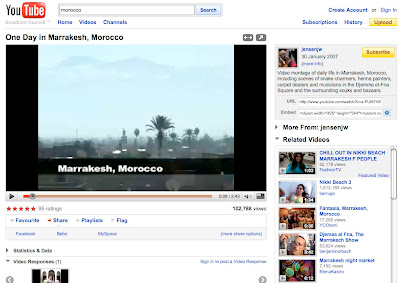
into this. A visual map of relayed videos. Each time you hover the mouse over one of the circles another set of related videos pop out and the you just click on a circle to play the video.
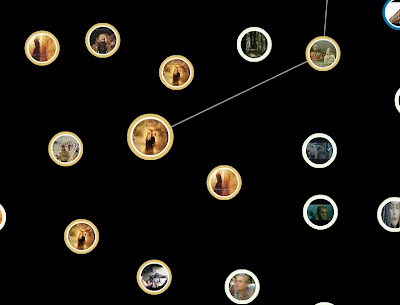
To appreciate the difference you really have to experience it, so here's the link to the original YouTube page with a video about Marrakesh
And now here's the 'warp'ed link with all the related videos which will start to show as you hover your mouse over them.
So how is it done?
Very simple, just replace the 'watch' in the URL to warp.swf
Example:
My Marrakesh video was at: http://www.youtube.com/watch?v=e-FUM74WsQo
So I change that to http://www.youtube.com/warp.swf?v=e-FUM74WsQo
This should work with any YouTube video.
So what's so great about this?
Well taking my original video on Marrakesh, it now enables my students to search for related video information around the same topic very quickly and simply.
As you move from video to video you create a kind of breadcrumb trail of dots which you can then click on to navigate back through the video you have watched.
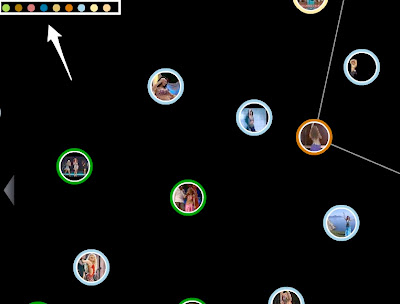
You can also click on the videos to play them full screen in your browser (nice feature IWB users)
This is a great way to get students researching information around a topic you want to discuss in class or just creating and exploring conceptual associations. You could do this in class if you have data projector and try to get students to explain the connections, like six degrees of seperations. For example, how did I start with avideo of Marrakesh and end up with one of Shakira dancing?
I really enjoy this tool. It's also really handy for finding new music that's connected to the music you already like. Just 'warp' a music video from YouTube that you like and start exploring the connections.
This tool will though access all and any YouTube videos, so keep that in mind when you consider using it with your students, especially younger ones.
Hope you enjoy this.
Related links:
Nik Peachey Read More..
So what it does, is it changes this dull YouTube page:

into this. A visual map of relayed videos. Each time you hover the mouse over one of the circles another set of related videos pop out and the you just click on a circle to play the video.

To appreciate the difference you really have to experience it, so here's the link to the original YouTube page with a video about Marrakesh
And now here's the 'warp'ed link with all the related videos which will start to show as you hover your mouse over them.
So how is it done?
Very simple, just replace the 'watch' in the URL to warp.swf
Example:
My Marrakesh video was at: http://www.youtube.com/watch?v=e-FUM74WsQo
So I change that to http://www.youtube.com/warp.swf?v=e-FUM74WsQo
This should work with any YouTube video.
So what's so great about this?
Well taking my original video on Marrakesh, it now enables my students to search for related video information around the same topic very quickly and simply.
As you move from video to video you create a kind of breadcrumb trail of dots which you can then click on to navigate back through the video you have watched.
You can also click on the videos to play them full screen in your browser (nice feature IWB users)
This is a great way to get students researching information around a topic you want to discuss in class or just creating and exploring conceptual associations. You could do this in class if you have data projector and try to get students to explain the connections, like six degrees of seperations. For example, how did I start with avideo of Marrakesh and end up with one of Shakira dancing?I really enjoy this tool. It's also really handy for finding new music that's connected to the music you already like. Just 'warp' a music video from YouTube that you like and start exploring the connections.
This tool will though access all and any YouTube videos, so keep that in mind when you consider using it with your students, especially younger ones.
Hope you enjoy this.
Related links:
- Creating multimedia stories
- 12 Second Video Clips for EFL ESL
- Tutorial: Using Videos from YouTube
- Sending Bubble Joy to your EFL / ESL Students
- Great Video Commenting Tool
- A Picture's worth
- Picture phrases
- Personalised flashcards
- Exploiting Image Sequences
Nik Peachey Read More..
Friday, October 9, 2009
Using Movie Soundtracks in the EFL ESL Classroom
Using films and movies in class is a great way to encourage students to learn more language, so if you use them a lot then this site will be handy for you.

It's called MoMupl and it searches a database of movie sound tracks to help you find all the songs and music from films. You just type in the title of the movie and then click on the results to get a full list of the music tracks from that movie

You can then just play any of the tracks you want to hear in the browser.
This is a great tool that you can combine with the work you do on movies. Music is a very strong aid to memory, so you can use the music to prompt students to remember or it can just enhance the atmosphere of your lesson.
You can use this with students in a number of ways.
I hope you find it useful.
Related links:
Nik Peachey Read More..

It's called MoMupl and it searches a database of movie sound tracks to help you find all the songs and music from films. You just type in the title of the movie and then click on the results to get a full list of the music tracks from that movie

You can then just play any of the tracks you want to hear in the browser.
This is a great tool that you can combine with the work you do on movies. Music is a very strong aid to memory, so you can use the music to prompt students to remember or it can just enhance the atmosphere of your lesson.You can use this with students in a number of ways.
- Find the sound track for a movie your students have been studying and play different tracks, then ask if they can remember what was happening in the part of the movie when this music was playing.
- Use sounds tracks before the students watch the movie. Play them various clips and see what they can predict about the movie from the music. Get the students to create their own movie scenario from the different tracks.
- Get students to find a sound clip from their favourite movie and tell others about it in class.
- Use sound tracks from movies as the back ground for story telling.
- Give students some exerts from movie scripts (download scripts from Drew's Script-O-Rama). Get them to read 4 or 5 short dialogues then play them a short exert from a sound track and see if they can match the sound track to the movie script.
I hope you find it useful.
- Here you can find activities for EFL ESL students that use music.
Related links:
- Animated Music Videos for EFL
- Get the Stars to Sing Your Students' Words
- Write a Music Video Review
- Spot Talent for your Record Label
- Can Music Aid Memory of Text?
- Karaoke with a Social Network
- Another Great New Karaoke Site
- Great New Karaoke Site
Nik Peachey Read More..
Thursday, October 8, 2009
Crazy Comparatives & Superlatives
I have to say that I used to dread teaching comparatives and superlatives and always found it really hard to think of something original to get my students interested, so when I saw this site I was really delighted. It's not only quite funny, but has some excellent materials for covering what can be a really dull language point.

The site is called the Universal Record Database and it is a collection of user generated and very unofficial world records. Anyone can go on the site and create their own world record. As proof they simply add an image or a video of themselves creating the record.
Here's a few examples:
Most People Simultaneously Drinking Out Of A Pineapple
The widest tongue

Most Handshakes Elicted From A Dog In 30 Seconds
Most Women Named Wendy To Eat At A Wendy's

There are lots of ways to use the Universal Record Database with students.
Anyway, here's my favourite record, Tallest Tower Of Humans Wearing One Sock Each, Brushing Teeth And Listening To 'Thriller'.
I hope you find this useful and have a lot of fun with your students.
Here you can find more than 100 online activities for EFL and ESL students
Related links:
Best
Nik Peachey Read More..

The site is called the Universal Record Database and it is a collection of user generated and very unofficial world records. Anyone can go on the site and create their own world record. As proof they simply add an image or a video of themselves creating the record.
Here's a few examples:
Most People Simultaneously Drinking Out Of A Pineapple
The widest tongue
Most Handshakes Elicted From A Dog In 30 Seconds
Most Women Named Wendy To Eat At A Wendy's
There are lots of ways to use the Universal Record Database with students.
- Show them some images and videos and see if they can guess what the record was.
- Tell them the type of record and see if the can guess the number or amount (e.g. how wide is the widest tongue)
- Get students to think of their own crazy records and create a picture or video to upload to the site.
- Create your own class records and try to get each students to have a record.
- Get students to try to break one of the records from the site.
- Get students to find their favourite record on the site or the one they think is funniest and share it with the class, or blog about it.
Anyway, here's my favourite record, Tallest Tower Of Humans Wearing One Sock Each, Brushing Teeth And Listening To 'Thriller'.
I hope you find this useful and have a lot of fun with your students.
Here you can find more than 100 online activities for EFL and ESL students
Related links:
- 12 Second Video Clips for EFL ESL
- Create Image Books
- 20 WebCam Activities for EFL ESL Students
- Sending Bubble Joy to your EFL / ESL Students
- Microblogging for EFL with Plurk
- Great Video Commenting Tool
- Video conferencing for EFL
- Send Free Video Messages
Best
Nik Peachey Read More..
Monday, September 28, 2009
Animated Music Videos for EFL
I came across these videos today while I was trawling through YouTube and was instantly struck by what great materials they would be for EFL ESL students.
I found two sets the first produced by musicANDmuffins and the second SereneRhapsody. There are five videos in each collection and they all use songs with quite clear simple lyrics. The animation is marvelous and clever, though very simple and clearly illustrates the meaning of the songs while showing the lyrics.
It really wouldn't take much work to turn each of these into a short language lesson, or you could use one as an example for your students and get them to draw simple illustrations for a song and create their own video.
These are fantastic authentic materials. Be sure to subscribe to their channel to find out when any new ones come along.
You can find video activities for EFL ESL students here.
Related links:
Best
Nik Peachey Read More..
I found two sets the first produced by musicANDmuffins and the second SereneRhapsody. There are five videos in each collection and they all use songs with quite clear simple lyrics. The animation is marvelous and clever, though very simple and clearly illustrates the meaning of the songs while showing the lyrics.
It really wouldn't take much work to turn each of these into a short language lesson, or you could use one as an example for your students and get them to draw simple illustrations for a song and create their own video.
These are fantastic authentic materials. Be sure to subscribe to their channel to find out when any new ones come along.
You can find video activities for EFL ESL students here.
Related links:
- Multimedia Travel Activities
- Creating multimedia stories
- News Videos for EFL ESL Materials Design
- Things You Can Do With Your WebCam 1
- Exploiting a Video Viral
- Lesson plan Top 10 Cartoons for Children’s Rights
- Create a YouTube Carousel
- Videos for Global Issues Lessons
- Update on the Education Clip Library
Best
Nik Peachey Read More..
Thursday, September 24, 2009
Multimedia Travel Activities
What'sOnWhen is really useful travel site that allows students to find out about cultural events and places all around the world. You can either search by city or country, enter keywords and search or browse destination or the collection of videos related to specific events.
The content is really simple to access and is well organised and the video clips are small and short - not really appropriate for a single computer classroom, but great for students doing research or activities work in alone or in pairs on their computer.
There are a number of tasks you could set students using this material.


I really like the site because the information comes in different media and is very much split into the kinds of small digestible chunks that lend themselves to online study and language development.
This isn't a site that was designed for education so their is quite a bit of advertising, but your students will need to get used to noticing and ignoring that.
I hope you find it useful and your students enjoy it.
Related links:
Best
Nik Peachey Read More..
The content is really simple to access and is well organised and the video clips are small and short - not really appropriate for a single computer classroom, but great for students doing research or activities work in alone or in pairs on their computer.There are a number of tasks you could set students using this material.
- Get each student to think of a country or city they would like to visit, send them away to research an event that is happening in that city / country then they can come back to class tell other students about the event and try to persuade them to come to the event with them.

- You could get students to browse through the video section watch some of the videos and decide which place they would most like to go to.

- You could get students to research their own country, find out what events are being advertised and see if the information is accurate. They could then create their own content based around any events that happen in their country that have been missed, using the website entries as a model.
I really like the site because the information comes in different media and is very much split into the kinds of small digestible chunks that lend themselves to online study and language development.This isn't a site that was designed for education so their is quite a bit of advertising, but your students will need to get used to noticing and ignoring that.
I hope you find it useful and your students enjoy it.
Related links:
- Creating multimedia stories
- News Videos for EFL ESL Materials Design
- Things You Can Do With Your WebCam 1
- Exploiting a Video Viral
- Lesson plan Top 10 Cartoons for Children’s Rights
- Create a YouTube Carousel
- Videos for Global Issues Lessons
- Update on the Education Clip Library
Best
Nik Peachey Read More..
Thursday, July 30, 2009
Create an ESL EFL Video Quiz
ESLvideo.com is a great free site that enables you to create your own quizzes based on video clips from popular sharing sites like YouTube or BlipTV.

You have to register and log in and then you just grab embed codes for the video you want to build you quiz around. The site is multilingual so it doesn't just have to be an English language video.
Then you just add your questions and then embed the finished quiz into your blog or site. There are instructions here telling you how to create your own video quiz
As well as this the site has a huge collection of quizzes that have already been created by users and you can grab the code for these and add them to your blog. As users create quizzes they also classify and level them so it makes it very easy to choose something for your class even if you are in a hurry.

Here's an example one.
You can also register and create your own 'class' on the site. which you can then invite your students to, so that you control which quizzes they do.
This is a great and simple way to create motivating online tasks for your students and it's totally free. It also allows you to produce materials at home that your students can watch at home in schools where YouTube is blocked.
The only problem I had with it was that some of the video clips are restricted geographically by YouTube, but if you are creating your own for students in your country then you'll soon realise what is and isn't available.
I hope you enjoy this site and create lots of great quizzes.
Related links:
Nik Peachey Read More..

You have to register and log in and then you just grab embed codes for the video you want to build you quiz around. The site is multilingual so it doesn't just have to be an English language video.
Then you just add your questions and then embed the finished quiz into your blog or site. There are instructions here telling you how to create your own video quiz
As well as this the site has a huge collection of quizzes that have already been created by users and you can grab the code for these and add them to your blog. As users create quizzes they also classify and level them so it makes it very easy to choose something for your class even if you are in a hurry.

Here's an example one.
You can also register and create your own 'class' on the site. which you can then invite your students to, so that you control which quizzes they do.
This is a great and simple way to create motivating online tasks for your students and it's totally free. It also allows you to produce materials at home that your students can watch at home in schools where YouTube is blocked.
The only problem I had with it was that some of the video clips are restricted geographically by YouTube, but if you are creating your own for students in your country then you'll soon realise what is and isn't available.
I hope you enjoy this site and create lots of great quizzes.
Related links:
- 20+ video activities for students
- 20 WebCam Activities for EFL ESL Students
- Online Video: For Language Development
- Online Video: As Knowledge Resource
- Online Video: Authentic Genres
- Free Educational TV Channels
- News Videos for EFL ESL Materials Design
- Exploiting a Video Viral
- Create a YouTube Carousel
- 12 Second Video Clips for EFL ESL
- Sending Bubble Joy to your EFL / ESL Students
- Great Video Commenting Tool
Nik Peachey Read More..
Monday, July 27, 2009
Writing Around a Video Clip
My Movie Moment is a tool designed for Father's day, though I'm not sure I would want one of these clips for a Father's Day gift! It enable you to put yourself into one of six famous film clips, simply by uploading an image of yourself. Here's one of me talking about my working day!
My Movie Moment is simple to use. You just select the clip you want to use and watch it, then click on 'Star in this Clip' and upload your photo.
Then size it so that your face fills the field using the tools on the right.
Once you have done this more the markers over the parts of the face. Click on 'Continue' and the movie should be ready.

To save your movie you click on 'Share' then either get the URL, or click 'Grab' to get an embed code.

How do we use this with students?
Much as I don't think these are great Father's day gifts or appropriate for younger learners you could use them with your students as prompts for creative writing.
Get your students to create a clip using their own image. Then they should write a story of the context surrounding the clip, i.e.
They could upload their writing to a blog and add the the clip by embedding it in the blog or website page. As I said I think some of the clips could be a bit inappropriate for younger learners, so have a look at them all and check them for suitability before you get your students on the site.
I hope you find this useful and you and your students enjoy it.
Related links:
Nik Peachey Read More..
My Movie Moment is simple to use. You just select the clip you want to use and watch it, then click on 'Star in this Clip' and upload your photo.
Then size it so that your face fills the field using the tools on the right.
Once you have done this more the markers over the parts of the face. Click on 'Continue' and the movie should be ready.
To save your movie you click on 'Share' then either get the URL, or click 'Grab' to get an embed code.

How do we use this with students?
Much as I don't think these are great Father's day gifts or appropriate for younger learners you could use them with your students as prompts for creative writing.
Get your students to create a clip using their own image. Then they should write a story of the context surrounding the clip, i.e.
- What's happening?
- Who are the people?
- Why are they there?
- What happened before the clip?
- What happens next?
- etc
They could upload their writing to a blog and add the the clip by embedding it in the blog or website page. As I said I think some of the clips could be a bit inappropriate for younger learners, so have a look at them all and check them for suitability before you get your students on the site.
I hope you find this useful and you and your students enjoy it.
Related links:
- 20+ video related activities for EFL ESL students
- Exploiting a Video Viral
- Multilingual Instant Chat Rooms
- Flickr and Wiktionary Based Image Dictionary
- Exploiting Travel Images
- Online Video: For Language Development
- Online Video: As Communication
- Free Educational TV Channels
- News Videos for EFL ESL Materials Design
Nik Peachey Read More..
Monday, June 22, 2009
Multiple Media Search
I have to say that I think Spezify has just become my favourite new search engine. I think this is a really great search engine to use in class with students or to get them to use. It's really simple. It displays all results as images and it searches a wide range of multiple media sources such as video, image Twitter etc, not only text.
To make a search you just type in your key word and all the results start to appear as images.

If you click on the small spanner icon at the top right you can adjust the setting.
There is a safe search option here which is on by default, so that's handy. You can also turn various other options on or off so that you restrict which sources are included in your results.
As I said I think this is a nice search engine to use in class on IWB / data projector or for students.
Related links:
Nik Peachey Read More..
To make a search you just type in your key word and all the results start to appear as images.
If you click on the small spanner icon at the top right you can adjust the setting.
There is a safe search option here which is on by default, so that's handy. You can also turn various other options on or off so that you restrict which sources are included in your results.
As I said I think this is a nice search engine to use in class on IWB / data projector or for students.- You could type in keywords to brainstorm around topics or themes for the class you are doing.
- You could type in a keyword and get students to choose one result that they think will be interesting and get them to explore it as a warmer.
- You could get students to find an image, a text, a video and a tweet and write / talk about the connection between them.
- Or you could just use it to reinforce and find examples of vocabulary.
Related links:
- Creating Word Lists
- Flickr and Wiktionary Based Image Dictionary
- Image based activities
- Exploiting Travel Images
- Art Photography as a Basis for Language Activities
- Darwin and Evolution
- Create Image Books
- Create a Flickr Montage
Nik Peachey Read More..
Subscribe to:
Posts (Atom)